
Android VPN Not Working? Here’s How to Test It
Published 2026-01-30 15:46 in VPN APP
A Virtual Private Network (VPN) is meant to protect your online privacy, encrypt your data, and help you bypass restrictions — but what happens when it doesn’t seem to be working on your Android device? At PrivateVPN, we understand how important reliable VPN protection is, especially when you're using public Wi-Fi or accessing geo-restricted content. If you suspect your Android VPN isn’t doing its job, here’s how to test it and make sure you’re fully protected.
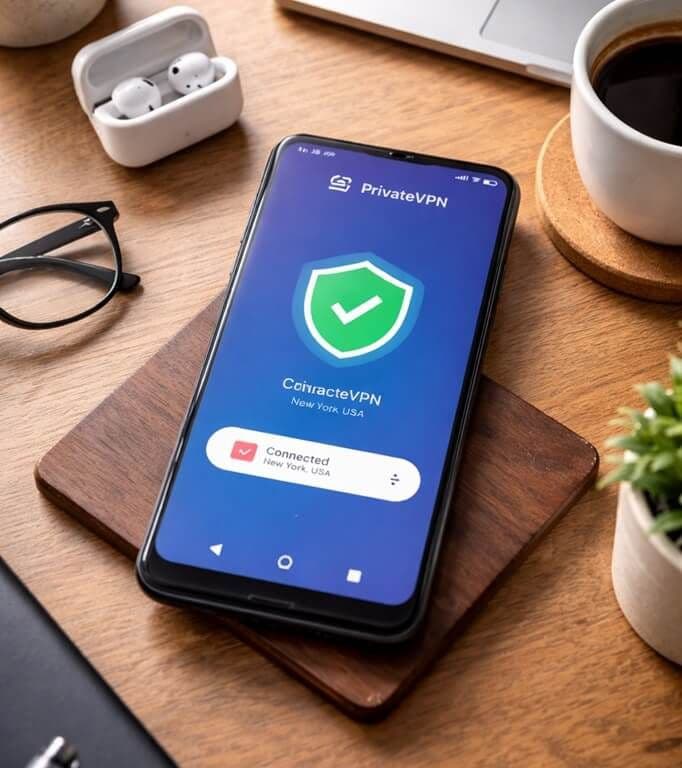
1. Check Your IP Address Before and After Connecting
The simplest way to check if your VPN is working is to compare your IP address before and after connecting to the VPN.
- Disconnect PrivateVPN and go to a site like whatismyipaddress.com.
- Note your current IP address and location.
- Now, open the PrivateVPN app, choose a server (e.g., in another country), and connect.
- Revisit the same IP checker site.
What to expect: If your VPN is working properly, the IP address and location should now match the VPN server you connected to — not your real one. If the IP stays the same or still shows your actual location, something’s wrong.
2. Look for DNS or WebRTC Leaks
Even if your IP changes, DNS or WebRTC leaks can reveal your real identity online.
- While connected to PrivateVPN, visit a leak test site like dnsleaktest.com
or browserleaks.com. - Run a test and check whether your real IP or DNS server shows up.
If you see your real DNS or IP: You may be experiencing a leak. PrivateVPN includes built-in DNS leak protection, but certain Android system settings, browsers, or apps may override this. Try switching browsers or using our dedicated app rather than relying on third-party VPN settings.
3. Test Internet Access and Speeds
Sometimes users think their VPN isn’t working because the connection feels slow or unstable.
- With PrivateVPN connected, try browsing several websites or streaming content.
- If things feel sluggish, try switching to a different server or enabling our "Stealth VPN" mode for improved stability in restricted networks (especially helpful in countries with strict censorship).
- If you have no internet access at all while connected, check whether the VPN has permission to run in the background or if battery optimization settings are limiting it.
4. Check the VPN Connection Status in the App
Inside the PrivateVPN app, you should always see a status indicator showing whether you're connected or not.
- If it’s stuck on "connecting" or disconnects frequently, try toggling airplane mode on and off, switching between Wi-Fi and mobile data, or restarting your device.
- Ensure your PrivateVPN app is up to date — we release regular updates to improve performance and compatibility.
5. Review Android Settings That May Interfere
Some Android settings and apps can interfere with VPN connections:
- Battery Optimization: Go to your system settings and exclude PrivateVPN from battery-saving features. These can prevent the VPN from running in the background.
- Third-party firewalls or antivirus apps: These might block VPN traffic — try temporarily disabling them to see if it makes a difference.
- Always-On VPN or Kill Switch: If you've enabled "Always-on VPN" or "Block connections without VPN" in system settings, make sure they are configured correctly to avoid blocking valid connections.
6. Contact PrivateVPN Support for Help
Still unsure whether PrivateVPN is working as it should on your Android device? Our support team is available to assist you — just reach out via live chat or email. We’re here to help you troubleshoot and ensure you’re getting the full benefit of your VPN subscription.
Final Thoughts
Your VPN should give you peace of mind, not leave you second-guessing your security. With PrivateVPN, you're protected by industry-grade encryption, a strict no-logs policy, and advanced features designed for reliability — even on Android. If something seems off, a quick test like the ones above can clarify whether your VPN is working as intended.
And if it's not? We'll help you fix it.